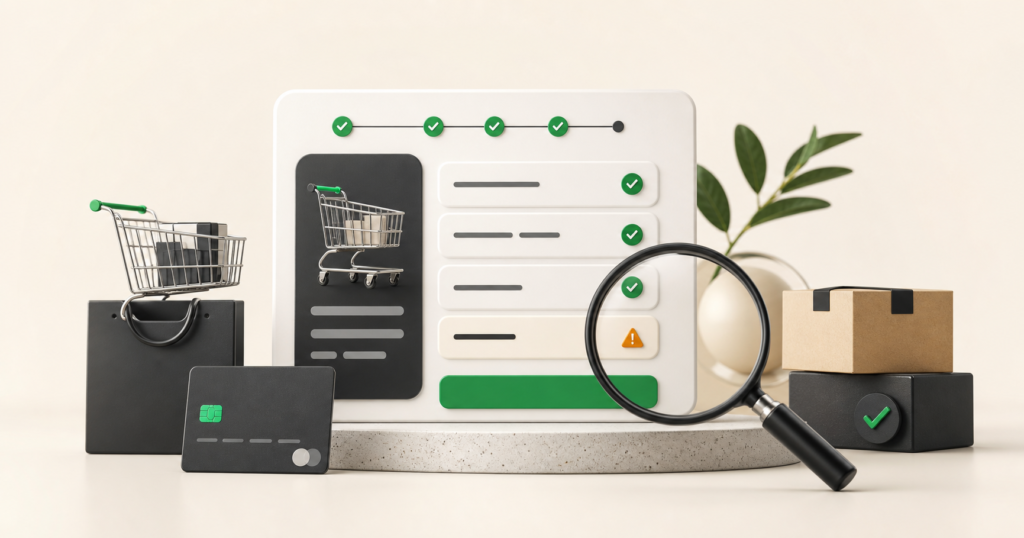
A store can have traffic, correct product cards and attractive prices and still lose orders at the last stage. The cause is not always one visible error. Sometimes the payment does not return to the store, the delivery appears only after entering the data, the form does not work on the phone or the customer does not understand the validation message.
Before you increase your advertising budget, complete the checkout like a customer and save the evidence. The following procedure helps distinguish a technical failure from friction that reduces the purchasing experience. It does not guarantee an increase in sales - but it allows you to check whether a key path is working as intended.
First determine: failure or friction?
Failure blocks the execution of the order: delivery cannot be selected, the button does not respond, the payment ends with an error or the order is not saved in WooCommerce.
Friction may not completely stop the purchase, but it does increase customer effort or uncertainty. Examples include forced registration, late delivery cost, unclear error message, too long form or slow loading on the phone.
Both types of problems are important, but the order of work should be different. First, blockers are removed, then friction is reduced and only then further improvements are tested.
9 checkout tests WooCommerce
1. Complete the full purchase as a guest
Open the store in private mode to not use the saved admin session or previous data. Add the product to the cart, go to checkout and place a test order according to the established payment procedure.
Check if the customer can buy without creating an account, if this is the store model. Record each step, the address of the device you are testing, and the time. Simply viewing the checkout page does not confirm that the entire process is working.
2. Repeat the test on your phone
Mobile checkout may behave differently from the desktop version. Look out for keyboard obstructing fields, invisible messages, hard-to-click elements, a jumping layout, and an off-screen order button.
Don't limit yourself to shrinking the browser window on your computer. Do at least one test on a real phone and a cellular connection.
3. Check each active payment method
Test separately traditional transfer, online payment, card, BLIK or other active gateways. Confirm where the customer goes after payment and what status the order receives in the WooCommerce panel.
If your carrier provides test mode, use it as documented. Don't accidentally change webhook keys or addresses on a running production.
4. Verify shipping, taxes and full amount
The customer should understand the final cost as early as possible. Test different postal codes, countries, free shipping thresholds and products with different shipping classes.
Verify that the address change updates shipping and taxes without error and that the amount in the store matches the amount transferred to the payment processor.
5. Intentionally trigger form errors
Leave a required field blank, enter an incorrect email address and do not select the required consent. The message should appear in the appropriate field, be legible and clearly state what needs to be corrected.
If the error only appears at the top of a long page, the phone client may not notice it. This is a typical case of friction that doesn't look like a failure in the logs.
6. Test coupons, variants and stock
Check for valid and invalid coupon, product with variants, last item and attempt to purchase more than available product. The shopping cart and checkout must show consistent prices and clear information about unavailability.
In stores with promotions, it is also worth confirming whether discount rules do not overlap unintentionally.
7. Check what happens after clicking "Buy and pay"
The test does not end with the thank you page. Confirm the order is saved, the correct status, the reduction in stock, e-mail messages and the return of information from the payment operator.
If the store uses warehouse, accounting or shipping integration, also check that the test order goes to the appropriate system without duplication.
8. Measure response times and look for conflicts without risky changes
Slow cash may be due to requests to external services, heavy scripting, theme, or plugin conflict. Record the loading time of the shopping cart and checkout pages on your phone and computer.
Do not randomly disable plugins in a running store. Perform conflict diagnostics on a copy or test environment, after a current backup and with a restoration plan.
9. Confirm measurement of stages, not just sales
The number of orders alone does not show where the user disappears. In analytics, it is worth distinguishing at least: product display, adding to cart, starting checkout, selecting delivery, starting payment and purchasing.
Events should fire once, contain consistent values, and not save tests as real revenue. The absence of an event does not always mean that the client is not working - it may indicate a measurement configuration error.
How to save test results
For each problem, write down four items:
- conditions: device, browser, product, delivery and payment method;
- steps: exact sequence leading to the problem;
- proof: screenshot, recording, order ID or appropriate log without sensitive data;
- receiving condition: Observable result that will confirm repair.
The description "checkout sometimes doesn't work" is difficult to fix and collect. The description "on the phone, after selecting the parcel locker, the order button does not respond; the fix is confirmed by the correct creation of a test order in two browsers" gives a specific starting point.
Priorities: what to fix first?
- P1 - blocker: the purchase is not possible, the amount is incorrect or the order/payment is not saved correctly.
- P2 - Severe friction: purchase works, but a significant group of customers may not understand the cost, error, or next step.
- P3 Improvement: the process is working correctly and the change requires measurement or testing before wider implementation.
This division reduces the temptation to correct the appearance of an unresolved payment error. It also helps define a scope and a fixed quote rather than an open bill for endless trials.
What not to do without a safety plan
- do not update all plugins at once in production;
- do not disable payment gateway without agreed maintenance window;
- do not copy customer data to the test environment without securing it;
- do not consider one successful admin purchase as a complete test;
- do not increase traffic if you cannot confirm correct order and payment records.
When should you start with an audit?
An audit makes sense when the problem is not clear, several elements may overlap, or you need to sequence the work before a larger expense. The result should be not only observations, but also priorities, acceptance conditions and the scope of the next stage.
See the scope of the website audit WebHeaven for 990 PLN net. Within 2 working days of confirmed funding and receipt of the agreed access, you receive a list of issues, priorities, an implementation plan and a fixed quote. The full PLN 990 is credited towards implementation commissioned within 14 days of receiving the audit. We request administrator access only after payment is secured.